Showing posts with label SSRS. Show all posts

Monday, 27 July 2020

SSRS 2012: “The report execution 'XXXXXXXXXXX' has expired or cannot be found. (rsExecutionNotFound)”


       I am using SQL Server Reporting Services 2012, while all the other reports its working fine, but for a specific report I was getting the error : "The report execution xesh2b451jdimsupcu3mnjzp has expired or cannot be found (rsExecutionNotFound)"   

I googled and tried to find the solution, I got some suggestions to increase the time out, remove the spaces and others. But nothing worked. 
Then I tried deleting the browser cache, browsing history and all, then opened the report in a new session and it worked for me.

So my understanding is that, it can have different solution for a different scenario


Reference: Govind Badkur(http://sqlserver20.blogspot.com)

Wednesday, 2 May 2018

Timeout expired. The timeout period elapsed prior to obtaining a connection from the pool. This may have occurred because all pooled connections were in use and max pool size was reached.

I was working on a SSRS report in SQL Server 2008 R2, report had So Many Datasets. When I was running the report I was getting the message "Timeout expired. The timeout period elapsed prior to obtaining a connection from the pool. This may have occurred because all pooled connections were in use and max pool size was reached." I tried to run the individual dataset's script in SSMS, it was working fine. I googled and Increase the Pool Size and Timeout duration in DataSource Connection String. Default Pool Size value is 100.


Data Source=ServerName;Initial Catalog= DatabaseName; Max Pool Size=500; Connection Timeout=1000;

This worked for me. For other applications like Asp.Net and others can use the connection string like:


ConnectionString="Data Source=ServerName;Initial Catalog= DatabaseName;Persist Security Info=True;User ID=SA;Password=UserPassword;Pooling='True'; Max Pool Size=500; Connection Timeout=1000;"


Reference: Govind Badkur(http://sqlserver20.blogspot.com)
Wednesday, 12 April 2017

Server error in '/Reports' application when exporting to excel in SSRS


I was exporting the report data into excel and got an error "Server Error in '/Reports' Application" as below :


Server Error in '/Reports' Application.
--------------------------------------------------------------------------------

Runtime Error
Description: An application error occurred on the server. The current custom error settings for this application prevent the details of the application error from being viewed remotely (for security reasons). It could, however, be viewed by browsers running on the local server machine.

Details: To enable the details of this specific error message to be viewable on remote machines, please create a <customErrors> tag within a "web.config" configuration file located in the root directory of the current web application. This <customErrors> tag should then have its "mode" attribute set to "Off".


<!-- Web.Config Configuration File -->


<configuration>
<system.web>
<customErrors mode="Off"/>
</system.web>
</configuration>


Notes: The current error page you are seeing can be replaced by a custom error page by modifying the "defaultRedirect" attribute of the application's <customErrors> configuration tag to point to a custom error page URL.


<!-- Web.Config Configuration File -->

<configuration>
<system.web>
<customErrors mode="RemoteOnly" defaultRedirect="mycustompage.htm"/>
</system.web>
</configuration>

The reason was simple, as my report has large number of rows and SSRS 2008 R2 generates word/excel of 'office 97-2003' file format. And in 'office 97-2003' format, excel supports up to 256 columns and 65k odd rows. To fix it I did Paging in SSRS Reports for 50k rows per page. and it worked fine for me.


Reference: Govind Badkur(http://sqlserver20.blogspot.com)

Add Page footer in SSRS Report

In reporting we may require to add Page number, UserID or any other information at footer. So to get it, follow the below steps :

1) In the report Designer View click any where in the rectangular area.

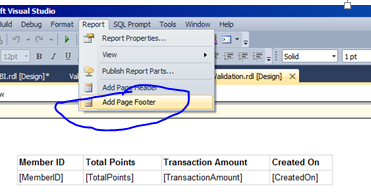
 2) Now from the menu select Report->Add Page Footer. a new area will appear under the Design rectangular area, this is the footer area.

a)


b)


3) Now, Drag and drop two text boxes in the footer area.


4) Right Click the Right TextBox and click on Expression.


5) Double click on the Built in Field "UserID" and press ok.


6) Repeat the same for Left TextBox, and put the  code ' =Globals!PageNumber & "/" & Globals!TotalPages '.


We are done here, and will get the page number following with UserID.


 Reference: Govind Badkur(http://sqlserver20.blogspot.com)

Tuesday, 11 April 2017

Repeat header rows on each page in SSRS Reports

I wanted to Repeat header rows on each page in SSRS Reports. Since I had a report containing large number of transactions, I required to split the output into multiple excel sheets and with that repeat the header row on each sheet and on every page on Preview. For achieving this, I followed the below steps.

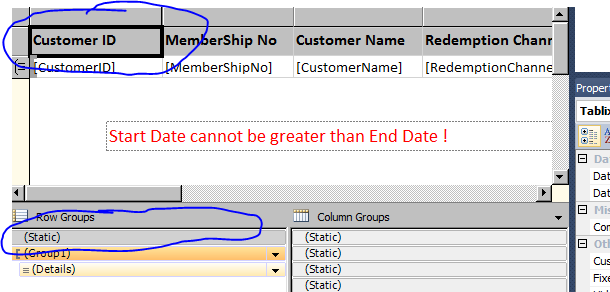
1) At first, checked 'Repeat header rows on each page' and  'Repeat header columns on each page'

enter image description here


2) Select the table and in right to the grouping pane, click the down arrow and then click 'Advanced Mode'.


3) In the row group pane, click the static tablix member and same will be highlighted in the table as well.


4) Now in the property window, for the static member in row group pane, set the following properties:
a) Set KeepTogether = True.
b) Set KeepWithGroup property as per your choice.
     For static row above the group, set 'After'
     For static row below the group, set 'Before'
c) Set RepeatOnNewPage = True


5) That's it. Save the changes and run the report and check the output.


Reference: Govind Badkur(http://sqlserver20.blogspot.com)

Can not open the Dropdown Arrow in SSRS

I am using SQL 2008 R2 report services and faced the problem in opening the Drop-down Arrow in SSRS report on IE browser, though I was opening it on the server it self and had admin rights. Then I googled and found a simple solution by adding report server URL to view compatibility list.

To do so, follow the below steps :

1) Go to the server and open the site on IE.
2) Go to the IE settings and click on Compatibility View Settings :


3) Put 'localhost' under Add this website : and clict Add


4) URL gets added and you are done, close the window.


5) And  Dropdown Arrow is opening now :


Reference: Govind Badkur(http://sqlserver20.blogspot.com)

Friday, 10 June 2016

Creating DropdownList as Parameter in SSRS

In SQL Server 2005, 2008, 2012 SSRS Reports, to create a dropdownlist as input parameter use below simple steps :


1) Right click the Parameters >> Add Parameters.

2) Give an Appropriate Name, Type.

3) Select "Available Values" section.

4) Click the "Get values from a query" Option.

5) Select the appropriate Dataset and Fields.

--------------------------------

For Multiple select values in a parameter :

1) Follow the above process. And additionally,

2) Check the "Allow Multiple Values"

3) Double click the Dataset which is calling the Parameterized SP, and using the above Parameter.

4) Go to "Parameters".

5) Open Expression for Multi Valued Parameter.

6) Append Join (eg,  =Join(Parameters!ProgramName.Value,",")) .


 Reference: Govind Badkur(http://sqlserver20.blogspot.com)